Europe 1952 – InDesign Template

Europe 1952 Cover

I thought I would make a template of this project available for you to download. I’m using Dropbox and I’m relatively new to it so I hope it works as desired. If you’ve not used an Adobe InDesign template before it is very easy. Just open the template as you would any document and then you can add pages and drag the desired master page for chapter headings and newspaper articles. You can customize it anyway you would like. If you want to edit the original template than you should make sure you open the original file. Think of the template as a starting place. This template is sized for a large landscape book on Blurb.com. To publish your finished book on blurb, download the pdf presets and export. Then upload the pdf to blurb and order you finished book. The cover template is for an image wrap book with 440 pages. So if your book is shorter you will need to make adjustments.

To download the files, click on the links below. One the page loads up it will look like gibberish, but don’t worry. Right click on the page and select “save page as” and save to your computer. Then you will be able to open the document in Adobe InDesign. (Sorry it has taken me all week to get this figured out)

Pages Template

Cover Template

This post concludes my Europe 1952 project. If you have questions that I haven’t covered let me know and I’ll do what I can to answer them, possible with an extra post. It has been a fun journey over the last few months.

Europe 1952 – Adding Memorabilia

One of the great things about doing this project was all the stuff that I had to work with. One of the challenging things about this project was all the stuff I had to work with. My mom is a saver and I think she saved everything she got on this trip. I have no idea how she got it all home. She didn’t have that much luggage. Even though sometimes it was a pain to figure out how to include most of the documents, brochures etc. that she saved, it adds to the flavor and the interest of the book. Some of the things I had to work with were:

How I dealt with the above items I covered in earlier posts. Follow the links above.

  • Documents

Some where scanned and others were transcribed and reformatted to fit the page.

  • Brochures
  • Maps
  • Menus
  • Letters
  • Business Cards
  • Receipts

I scanned these and cropped them to size before placing them in the document.

  • Postcards
  • Ticket Stubs

Some of the postcards and tickets stubs had interesting edges that I didn’t want to crop off. So after scanning I opened them in Adobe Photoshop, deleted the background so that it was transparent. Then when placed in the document the deckled or torn edges were preserved.

  • Booklets
  • Books
  • Medallions

Since these items were thicker I wanted to keep the dimension. So I also opened these images in Adobe Photoshop and deleted the background to make it transparent. I really like how you can tell they are books and not just a single sheet of paper. It was fun to have the medallion that my mom got from visiting the Pope. This same process works great for objects of any shape.

When placing the memorabilia on the page it is usually good to gather them near each other on the page and not spread them out across the page. Overlapping another piece of memorabilia or a photo can also help. The overlapping visually connects the items together and brings some order to a layout that might otherwise get too busy.


Europe 1952: Maps

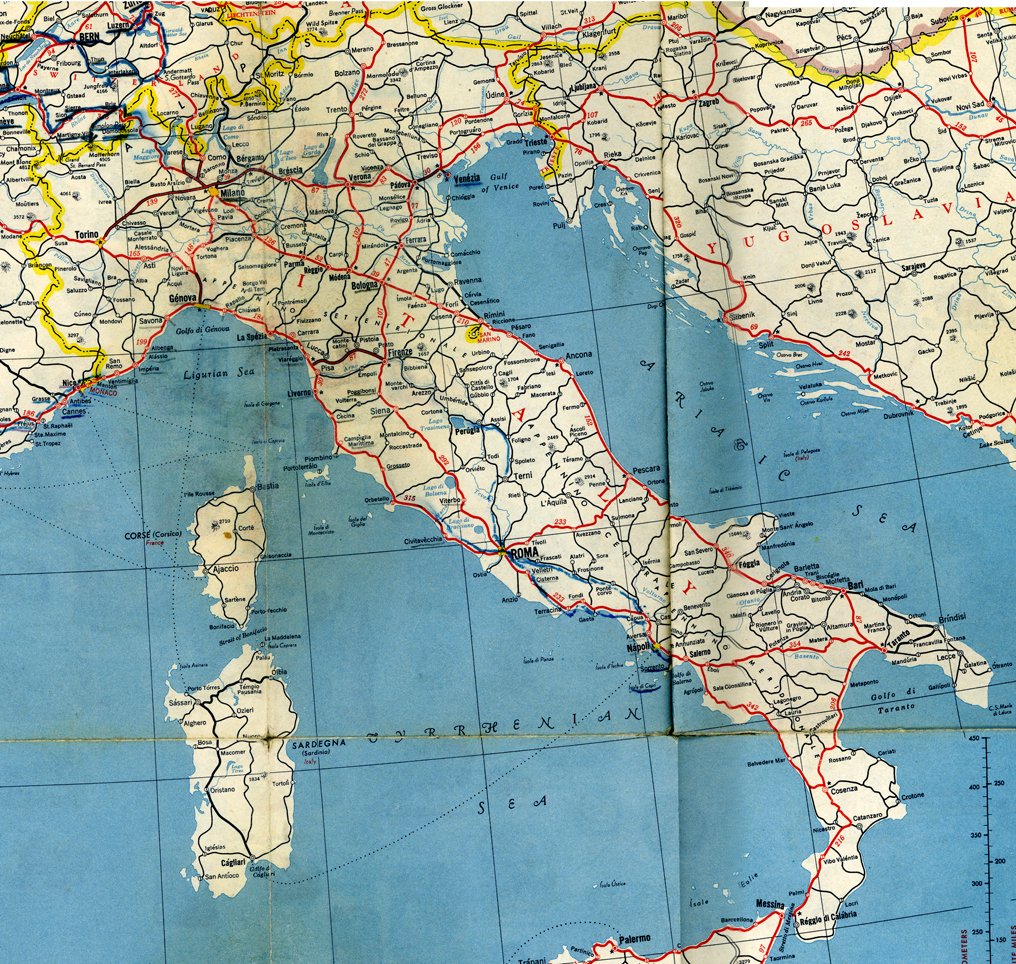
Among the many items that my mom saved from her trip to Europe in 1952 was a large map. I decided I wanted to use it at the beginning of each chapter. The map was challenging to scan because it was so big. So I scanned sections of it and then used Adobe Photoshop‘s photomerge to stitch together the section of the map for each country. If you’ve never used photomerge it is a very handy tool for doing things like panorama shots.

photomerged map

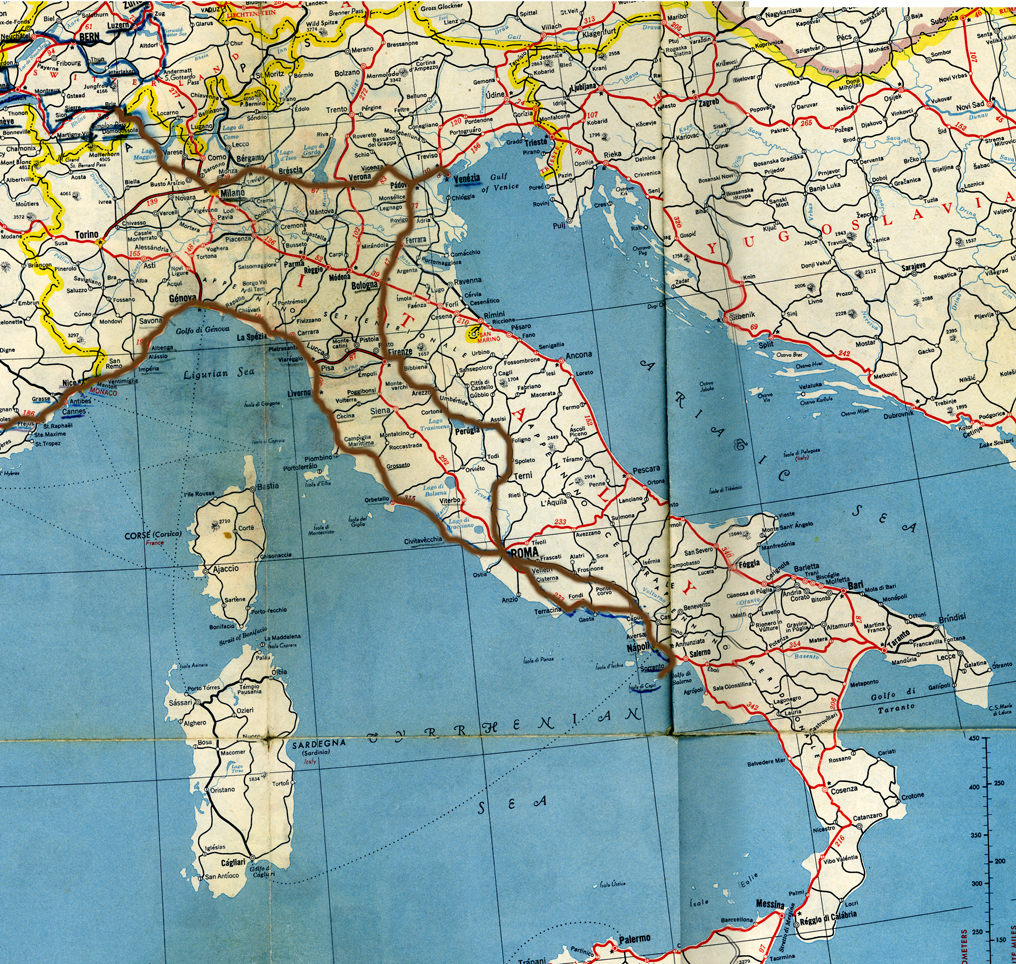
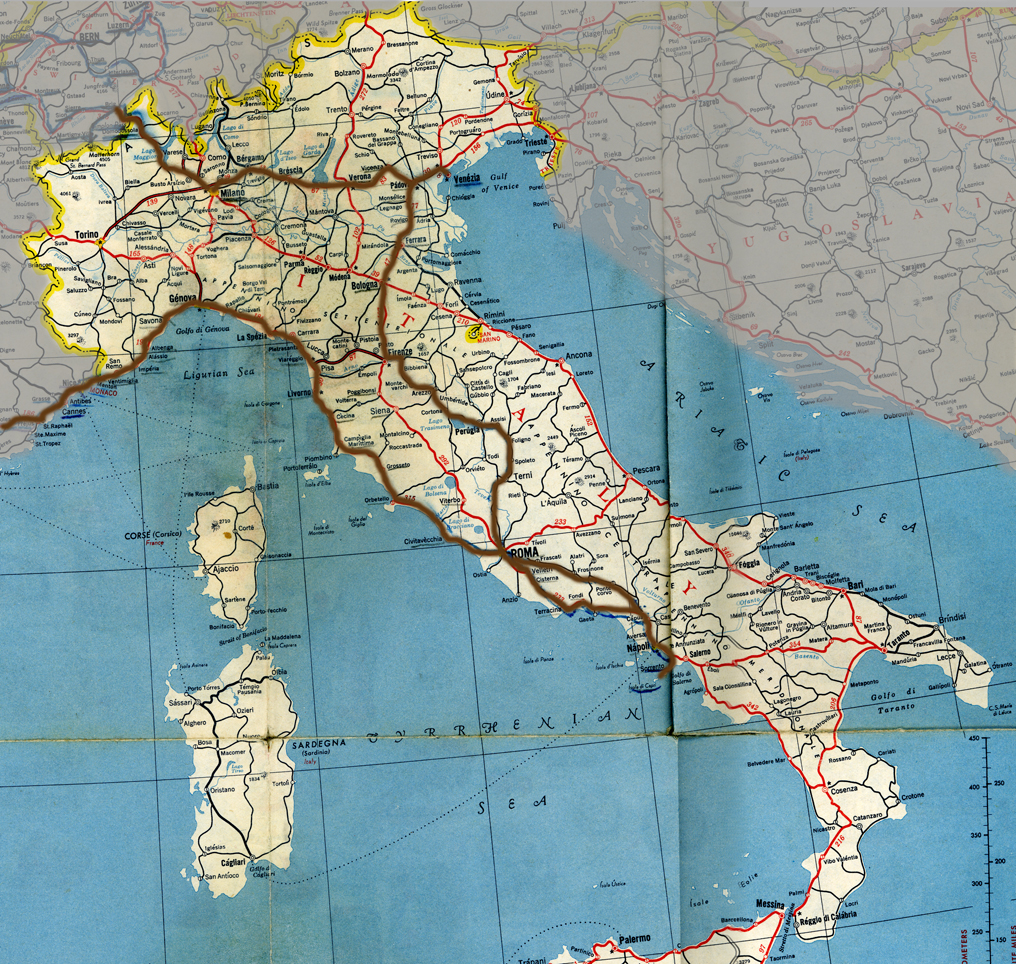
After I had a map section for each country I added a brown route line to mark the roads they traveled in that country. I did this also in Photoshop using the brush tool. To bring more focus to the country I added a grey mask that partially block out the neighboring countries, by adjusting the transparency of this layer.

map with route

map with surrounding countries grayed out

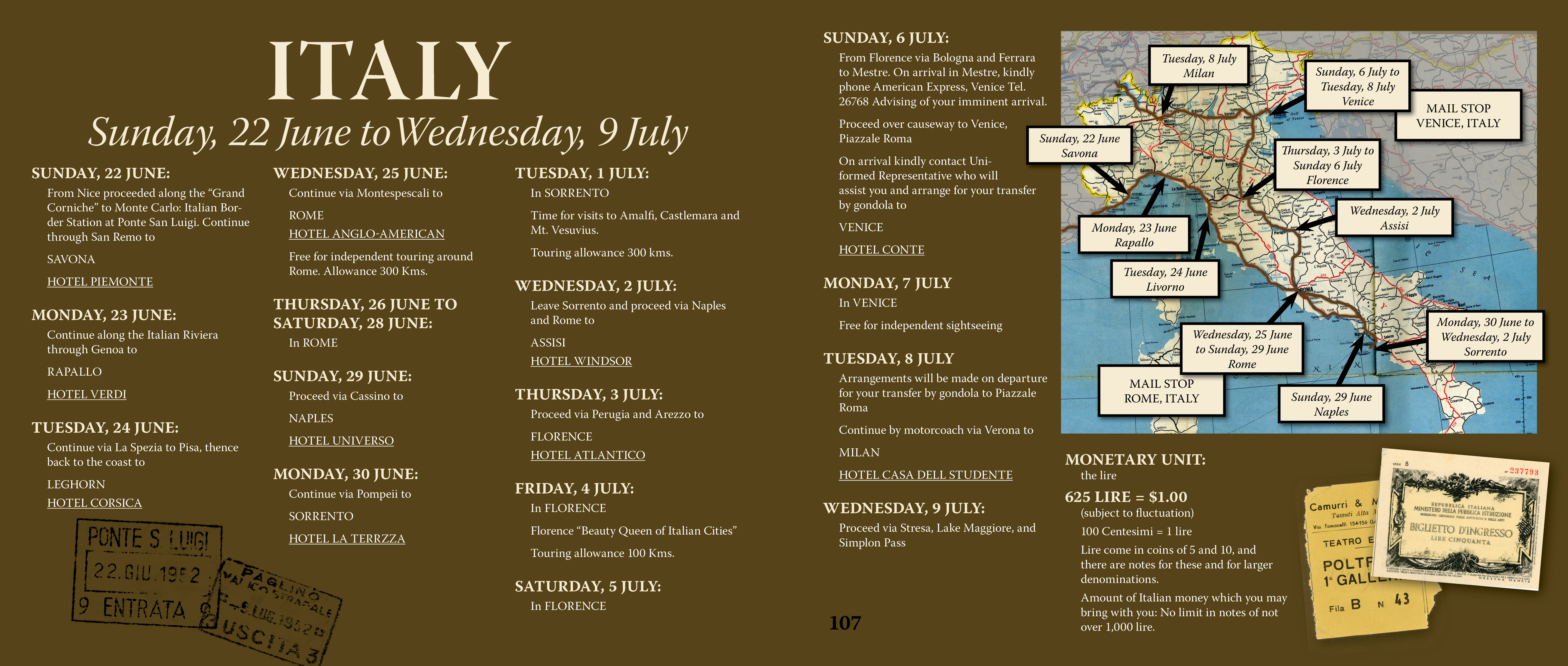
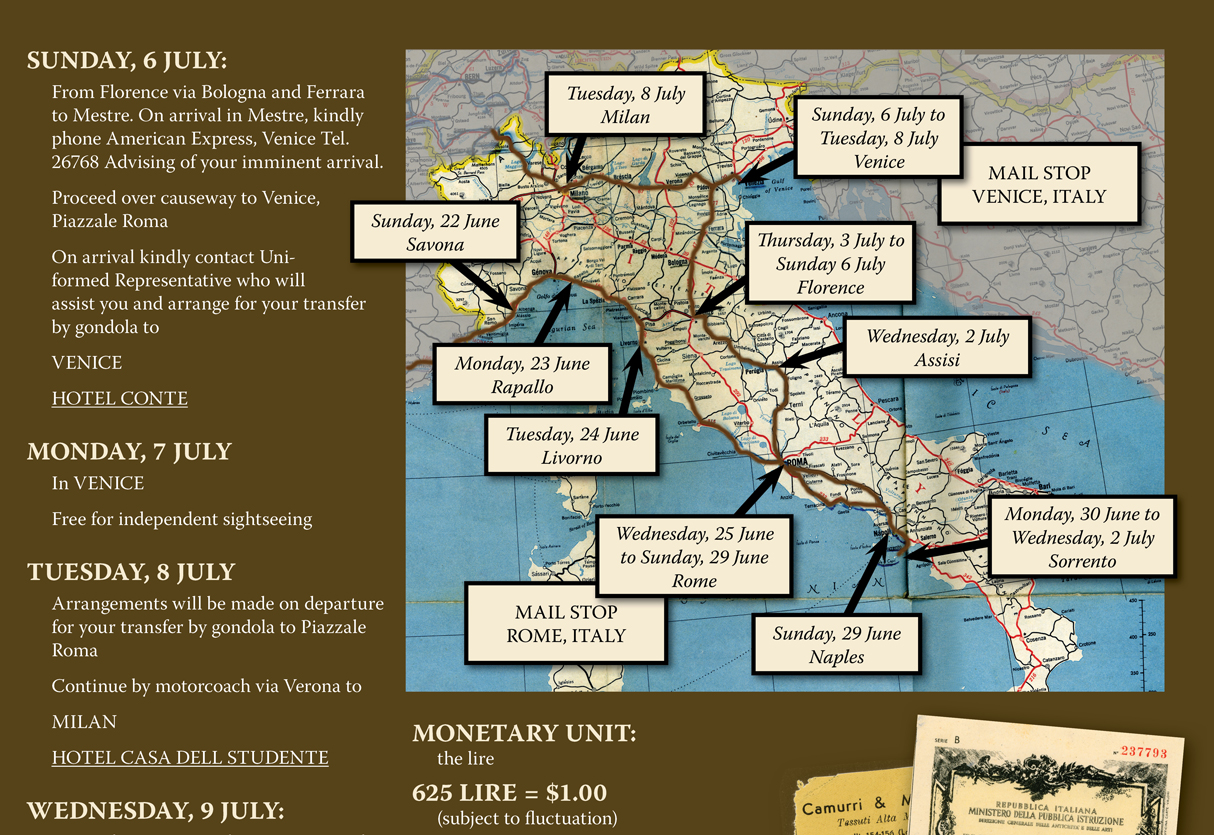
Once I brought the map image into Adobe InDesign, I added text boxes to label the cities they stayed in along with other relevant information and arrows to make it easier to tell the location of the city on the map. Arrows are easy to make in InDesign, just go to the stroke palette and select the style of arrow point you would like for the beginning or end of the line you made with the pen tool.

map with labels

I think the maps were effective in communicating a lot of the information at the beginning of each chapter in a visual way. How have you used maps in your projects?

Europe 1952 – Chapter Headings

In the early stages of putting together this book, I decided to break it up into chapters for each country. (Germany ended up with two chapters because they re-entered Germany a second time.) So I put together another master page in InDesign to make it easy to have a consistent look for the beginning of each chapter.

master page for Chapter headings

The beginning of each chapter was a natural place to put the itinerary for each country along with a map showing the route that they traveled. On the map I included the mail stops where they could pick up letters from family and friends back home. I also had information about the money of each country and the exchange rates in 1952. My mom’s passport had lots of entry and exit stamps from her trip so I added those to the beginning of the chapter. I’ll go over how I put the route on the map and how I handled the passport stamps in an upcoming post.

Europe 1952 – Newspaper Articles


example of newspaper article

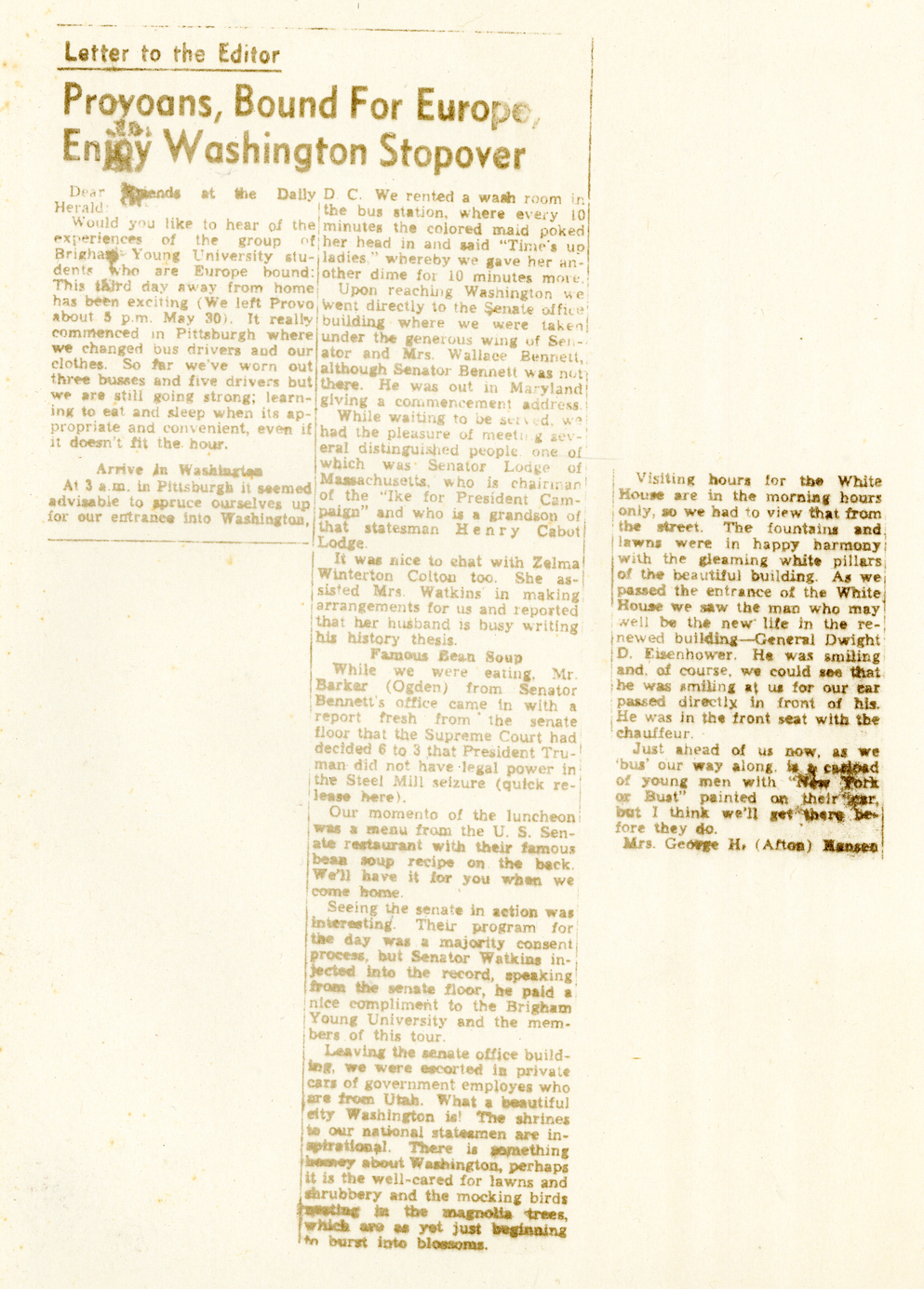
One of the wonderful resources I had for putting together this book for my mom was bunch of newspaper articles written by one of her fellow travelers on the trip. I wanted to include them because they had good information on what the trip was like, plus another perspective on Europe in 1952. But scanning in the articles and including them that way was problematic. First they were visually messy. They were different sizes and shapes and cut out from the paper in different way. Also some of them I just had a bad copy of the article and not the original. The next problem with going the scanned route was making them big enough on the page to be readable. After some thought I decided to try to replicated the look of the newspaper but to redo them so they fit into the book in a seamless way. The drawback was getting the text from the articles into my computer. I’ve never figured out how to do OCR so I had to type them in. It took awhile but I think it was worth it.

master page for newspaper articles

After I got the articles typed the next step was to create a master page for the newspaper articles. My basic master page has a dark brown background but that doesn’t look like a newspaper. So I changed the background to a nice cream color (I used the same color as the large text titles on each page). I changed the text to black and I went from three columns of text to five so that it would have the narrow column look of a newspaper. I added a header to duplicate the look of a newspaper and a large headline style for the title of each article.

Then we I came to the spot in the book where each newspaper article belonged it was a fairly simple task to change the master page and paste into the page the title and text. Then there were just a few little tweaks for the article and it was ready to go. I was very happy with the solution and I will keep it in mind for use in future projects.


Europe 1952 – Master Page and Using a Grid

When figuring out the way you want to layout the pages of a book I like to use a grid as the structure for the design. Before & After‘s has a two-part video that talks about using a grid in your design. If you want to learn more about grids in your designs it is well worth the 10 minutes or so it will take to watch them. I especially like part 2.

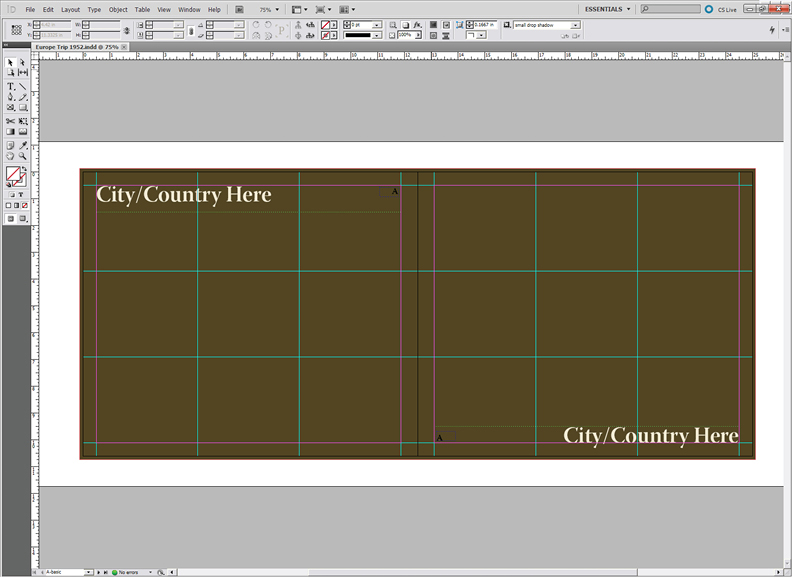
Because of the large size of the pages of this book (about 13″x11″) I wanted to have the text in columns. If a line of text gets too long in relation to the size of the letters it gets harder to read because it is so easy to lose your place on the line. Having columns of text solves this problem. I decided on three columns so I put guides on my master page for three columns. I also put guides horizontally to divide the page in three sections with in the margins. Instead of a small header or footer I chose to put a large title on each page. Part of the reason for this was that my mom, who the book is for, has macular degeneration plus cataracts so she couldn’t see well. Before I finished the project she had cataract surgery which helped her vision a lot. I thought that she would at least be able to read the title on each page and see something of the largest photos even if she couldn’t read all the text. It is important to keep in mind who you expect to read your stories and make decisions that will help them to be drawn into your book.

Basic Master page

If you haven’t used master pages you are missing a great time saver. In InDesign it is a simple as clicking on the master page in the pages pallet. By default there is a blank master page there called A-Master. Also by default this master page is applied to you whole document. When you add anything or edit anything on this page it is added to your entire document. Don’t worry, you can override this by dragging the [None] page in the pages pallet to any pages you don’t want to have the A-Master applied. I created two other master pages, one for the beginning of chapters and another for newspaper articles. I’ll talk about those in more detail in another post.

The advantage that having the three by three grid gave me was that it helped to make it simpler to figure out the layout for each page of the book. I had lots of photos and most of those photos are either one, two or three columns wide. Some are full bleed and a few go across to the facing page. But I still used those grid lines to help me to decide how large those photos were. Here are some examples pages.

The left hand page shows a “three column” photo and the right page is a full bleed.

This page has a bleed on three sides with a small “one column” photo overlapping on the left, while the right had page has two “two column” photos.

Here I have a “four column” full bleed and a couple of “one column” plus. When I was overlapping photos like here I was willing to allow photos to be wider than their column.

So how did I decide what size to make each photo? The first criteria was appeal of the image including the quality of the exposure. Because I wanted the photos to be the focus, if the image justified it I would make it as big as I could. Next I had to take into account how many photos or other memorabilia and the amount of text. Sometimes it is very tricky to get it to all coordinate together. But having the grid makes this easier and unifies the look of the book.

If you have any questions about how to do any of this please let me know. Next week I’ll cover how I handled the many newspaper articles I had for the book.

Mary – three more illustrations

I’m past due for an update on how the illustrated children’s book of my great-great-grandmother, Mary Taylor, is coming. Kim has completed 4 illustrations now and I’m happy with how they all look. I decided that I might as well start the actually book document now that I have 4 of the images.

Crossing the Platte River

We are planning to use blurb.com to publish this book. I love the 7×7 format that I’ve used for several other projects and we are using that again for this one. The blurb plug-in for InDesign is great. I put in the book size and the number of pages and it creates my blank document and then a second document for the cover. It is a much nicer system then the old templates. I took my outline for the book, (you can read it here in the original post about this project) and placed it on the pasteboard. The pasteboard is a handy area outside the page in InDesign. It is a great place to gather the items for a page until you know where you want them to go. It really helps me to get things organized without cluttering up the page. Then it was easy to make sure I was putting the illustrations in the right place. Plus I have a reminder there of what the text for that page should cover. It feels good to have the actually document started. I hope it will inspire me to get started on the text soon.

Fog and Icebergs Crossing the Atlantic

I recently finished a book about the Willie and Martin handcart companies called “The Price We Paid” by Andrew Olsen. Several of the missionaries when we were at Martin’s Cove recommended it. I skipped the section on the Willie company but it really gave me a much clearer understanding of the timeline and how everything happened, especially around the rescue. If you are looking to learn more about either of these handcart companies, you should read this book.

Mary’s Baptism

I have a lot of things on my plate now so I’m not sure when I can fit it in but at the same time I hate to put it off too long. I’d really like to have the text mostly written by the time Kim finishes the illustrations. Then I can quickly put the finishing touches on the project and get it printed. I think I’ll talk to Kim and see if we can figure out a timeline. Now that she has a few of the illustrations done, she should have a better feel for how much time she needs to get this project complete. I do best with deadlines, otherwise my projects can stretch out for ever and never get done.

Finished Illustration of Mary’s Childhood

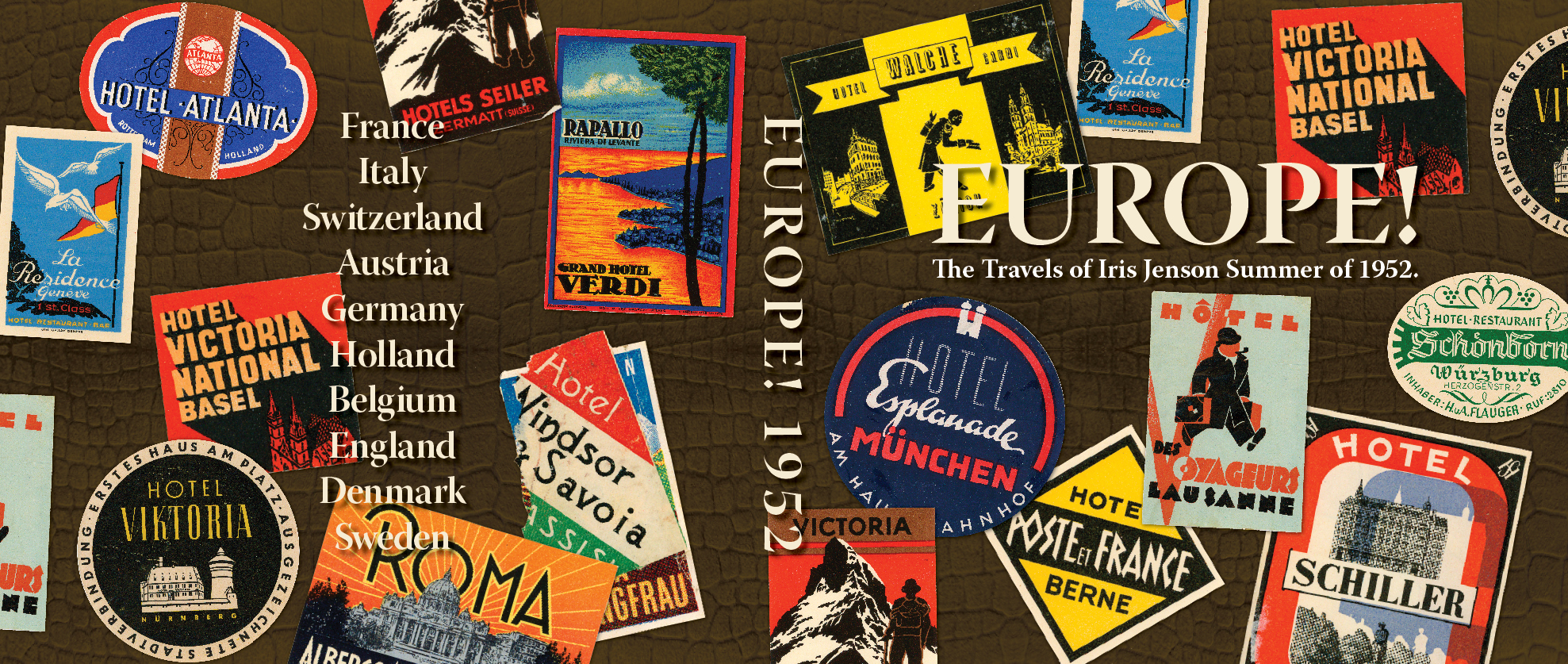
Europe 1952 – Cover

I hope that you have enjoyed this journey through Europe. I think I will miss these daily posts about my mother travels 60 years ago. For the next few weeks I’ll post on Tuesdays some of the “how to” of putting this book together. Today I’ll start with the cover.

Europe 1952 Front Cover

I wanted this cover to look like a small suitcase that I remember growing up, that my mom used on this trip. It was brown with an alligator texture and it had stickers from different places in Europe all over it. I originally thought I’d take a picture of the suitcase. But getting access to it wasn’t very convenient and when I found that my mom had extra stickers from her trip I decided that replicating it would probably get better results.

Crocodile Texture

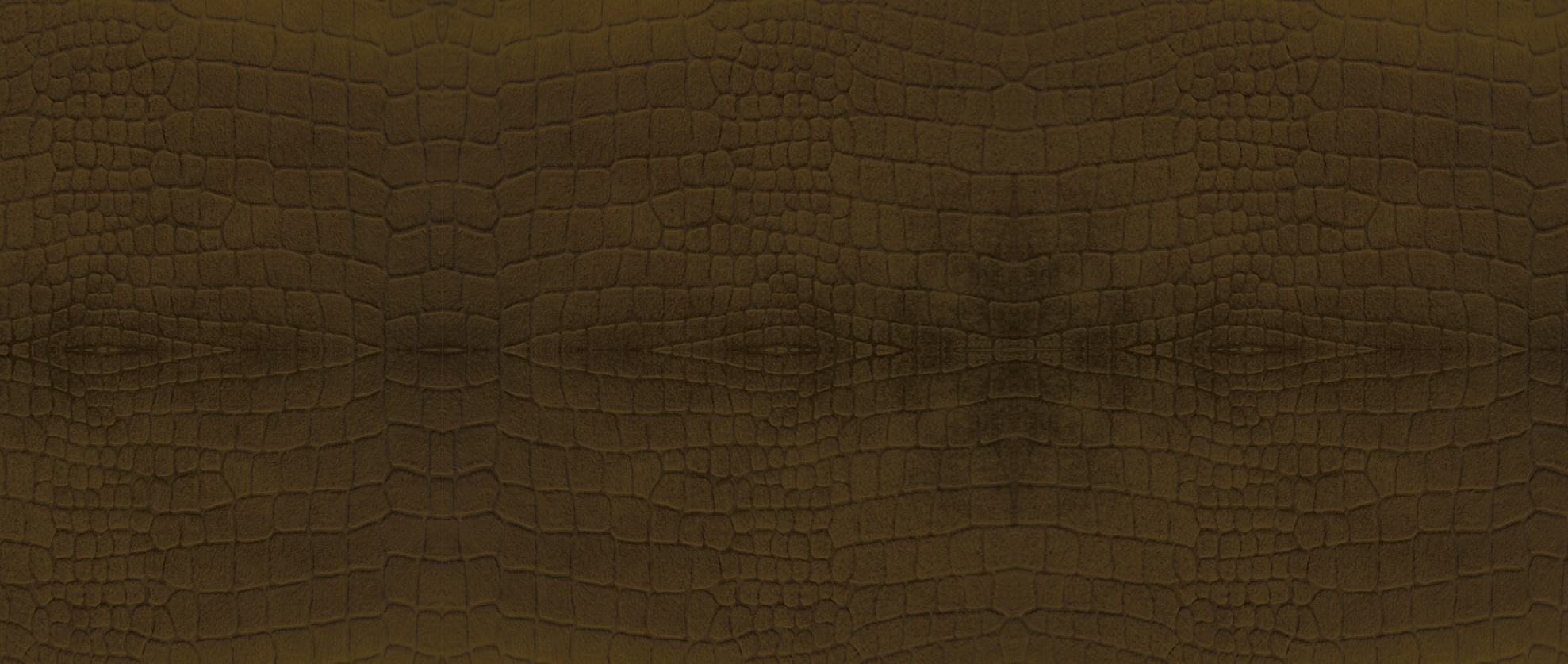
The first step was to find an image of an alligator texture. I ended up with a crocodile texture instead that I found at Lee Dyeing Company. It was perfect. They had an alligator texture too but the crocodile was more like the original suitcase.

original scan on left – converted to png on right

The next step was to scan in all the stickers. Then I erased the background and converted them to png files so that the background was transparent. I did this in Photoshop.

Now with the parts and pieces I needed gathered together it was time to make the cover. I used blurb’s template for Adobe InDesign to get the size right for my book. They now have a handy plug-in for InDesign instead of template. It takes into account not only the size of the book and the number of pages but also the type of paper it is printed on. When making the cover it is just one page that includes the front, spine and back cover along with the bleeds for wrapping the cover. The template shows you were these things are on the page. I love the image wrapped cover the blurb offers. I’ve tried the paper back and it looks good but it just isn’t very durable. They also offer a dust jacket option but I’ve never been tempted to try it.
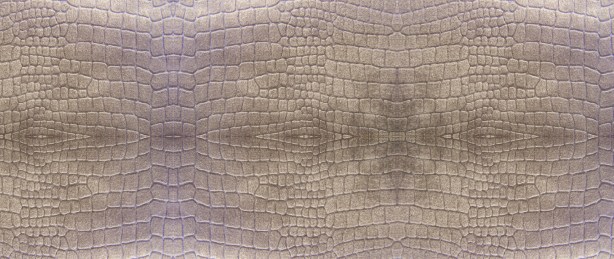
cover with crocodile texture

I placed the crocodile texture first. It was large image but not long enough for this cover so I copied and flipped the image horizontally. Then placed another copy next to that to give me enough image to cover the page horizontally. I copied all three of those and flipped them vertically to finish covering the page. Otherwise I’d risk too low of  resolution and ending up with a poor quality image.

crocodile texture with brown overlay

Now I had my texture but not the desired color. So on another layer I made a box large enough to cover the entire cover and filled it with brown. I used Pantone 7519 PC. Then I changed the transparency in the effects pallet to multiply. That made it so the crocodile texture came through. I was getting rather excited at this stage because how much it was looking like my mother’s suitcase.

cover with stickers added

Next I was ready to place the stickers. This took some trial and error to get a good balance in color and shape. I also kept in mind where I would be putting the text on the front, spine and back. As you can see I used some of the stickers more than once. But since they are on the front and the back I doubt that anyone has noticed on the finished book.

small drop shadow added to the stickers

To add just a bit of depth to the stickers the next step was a drop shadow. I’m not sure that you can see it here. Instead of the default 7 pt. drop shadow these are just 1 pt. in offset on both the x and y axis.
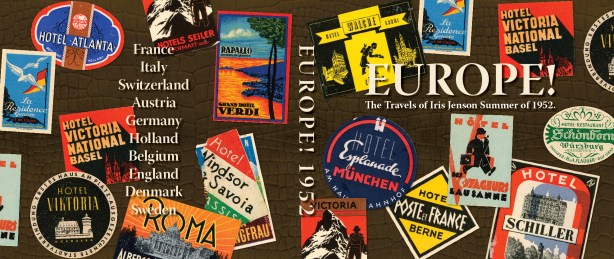
cover with text

The next step was to add the text. The cream color and font (Warnick Pro) are consistent with what I used for the inside of the book. At this point I realized that the cover was too busy. The drop shadow on the text helped make it more readable but it wasn’t enough. So I added a box around the title text on the front and changed the main title to red. I also put a stroke on the box, inspired by several of the stickers. Along with a larger drop shadow.
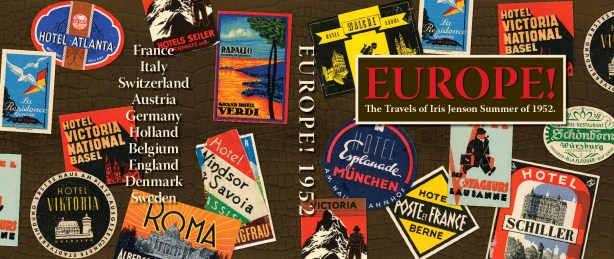
cover with box around title

This was a big improvement and I thought I was done. But when it came back to it later I decided it was still too busy. How could I fix it? I was not willing to give up on the concept of replicating my mother’s suitcase but I was not happy with all between the stickers and the title both front and back. So I decided to tone down the stickers. I took a black box large enough to fill the cover. I placed it under the text but over the stickers. Then after experimenting the transparencies I figured out that at 36% and using the darken effect I got the stickers toned down so they didn’t compete with the title. Yeah! The design now worked.

finished cover

Next week I’ll go over how I designed the layout for the inside of the book and using master pages in InDesign. What fun covers have you seen or designed yourself? I’d love to hear about them.

Mother’s Day Project

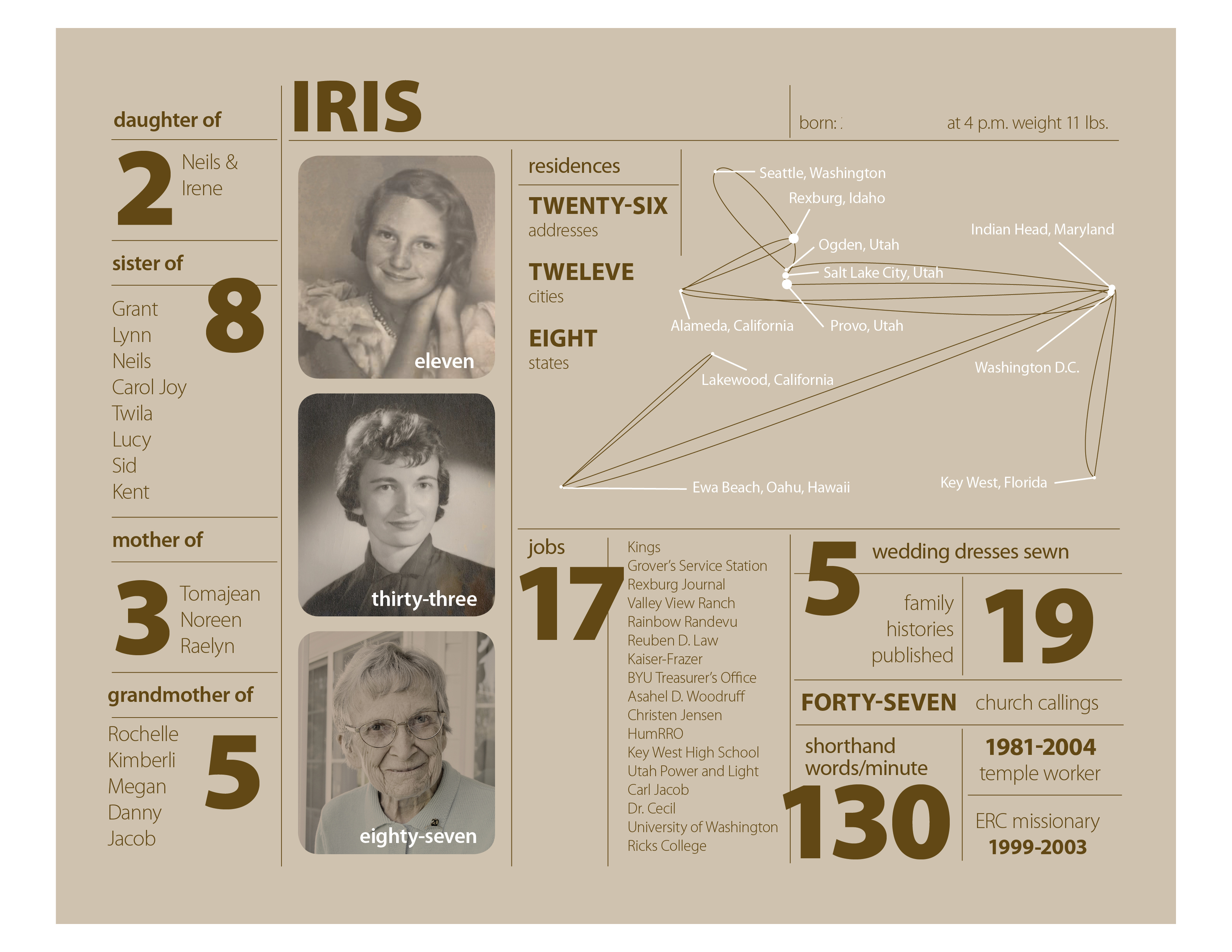
Mother’s Day Project for Iris

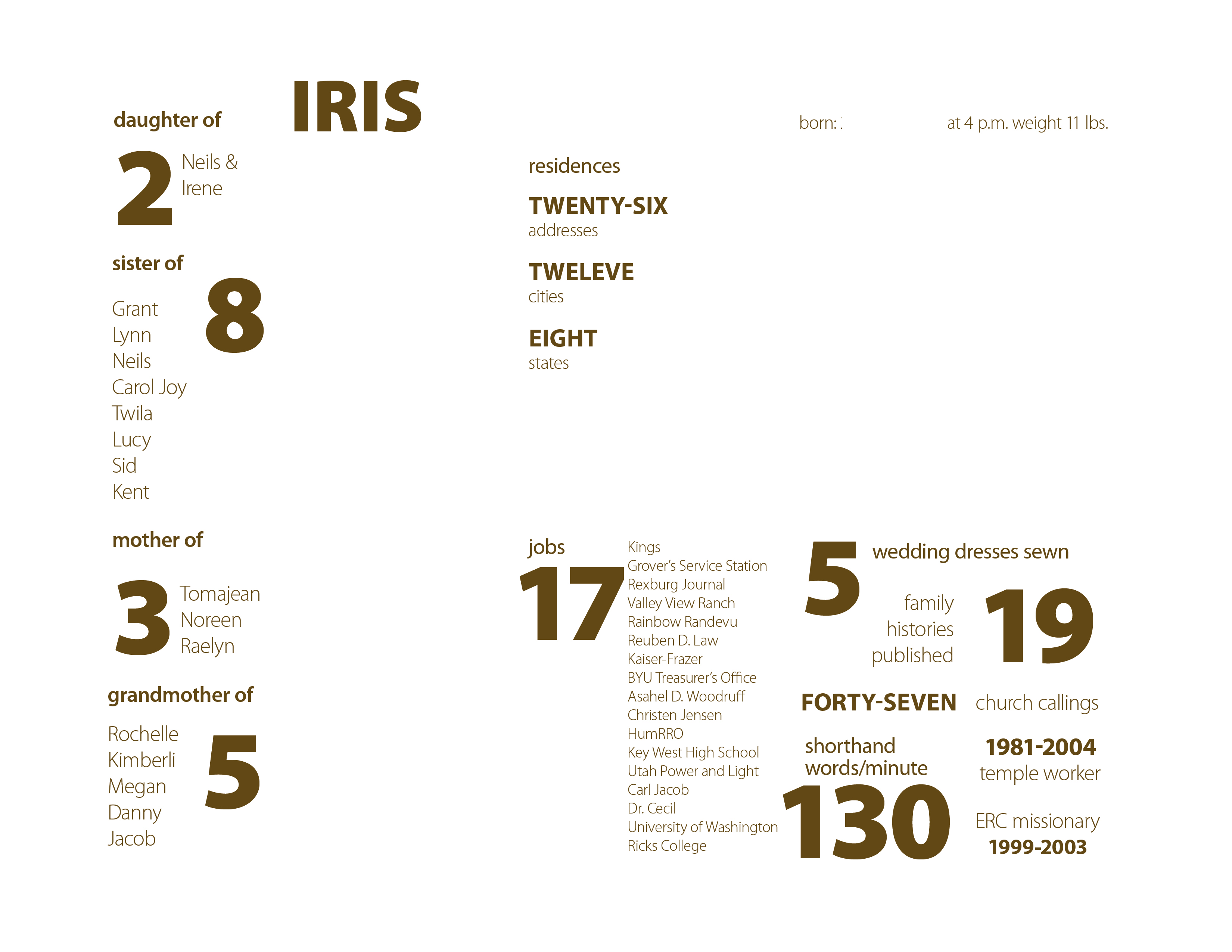
This is my version of an infographics inspire by Nicholas Felton‘s 2010 Annual Report. I’ve never done anything like this, so it was a learning experience and I enjoyed it. There are so many facts about a person’s life and this is a fairly simple one page project. I will print it out 8″ x 10″ and put it in a simple frame.

Iris – layer 1 – background

I did my layout in InDesign with five layers. The bottom layer just has the background.After I put in the background color in an 8 x 10 box, I locked the layer so I wouldn’t accidentally select it. The background color is a 25% tint of the main text color. This way when I go to make another version for Bill’s mom I can change the text color swatch and the background will change too.

Iris – layer 2 – lines

The second layer is just the lines. The default 1 pt stroke was too strong so they are .5 pt strokes. In case you don’t know, if you hold down the shift-key when you drag out a line with the line tool it will be perfectly horizontal or vertical.

Iris – layer 3 – text

The third layer is for most of the text. I used Myriad Pro in weights from light to black. I really like it when font families have such a contrast in weights.

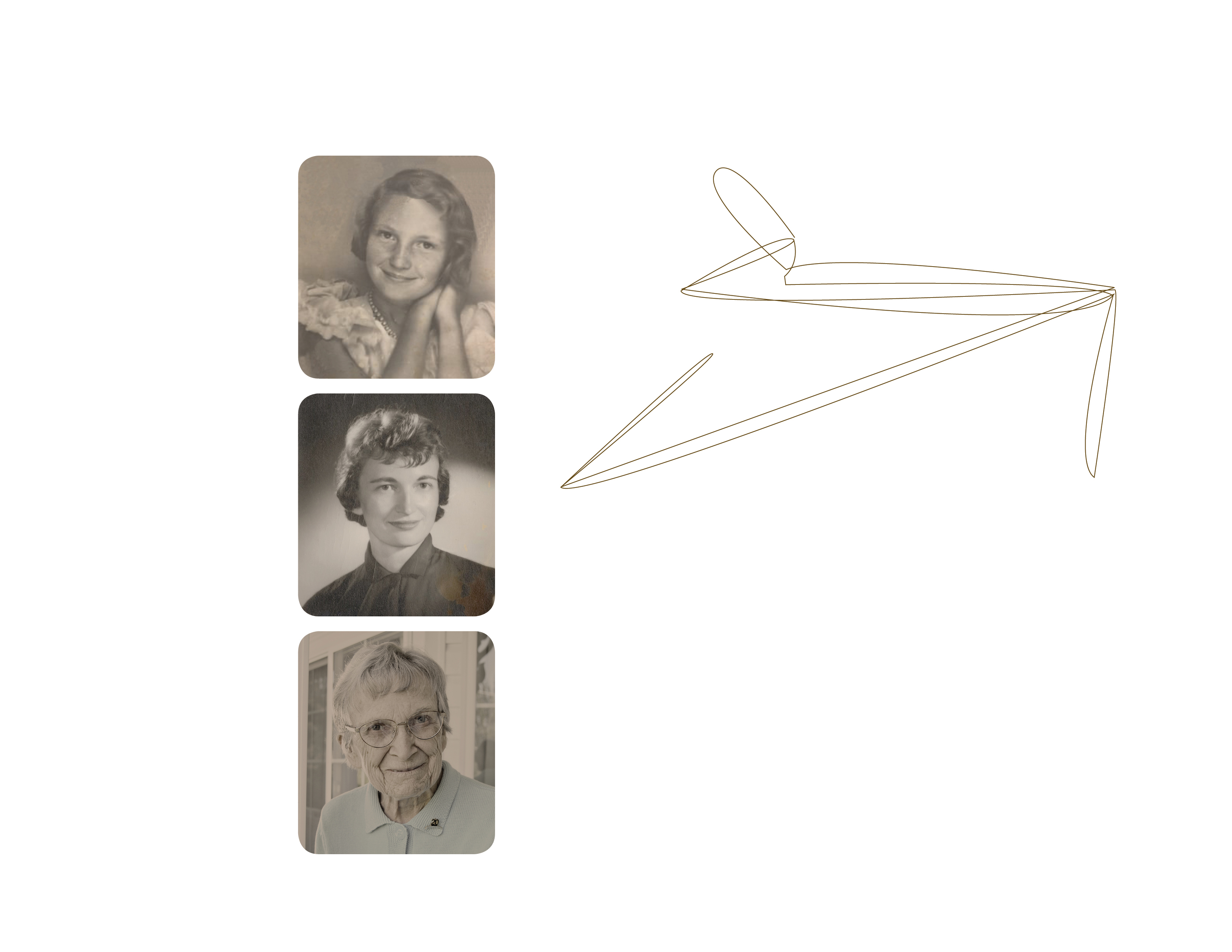
Iris – layer 4 – photos etc.

The fourth layer is for the photos. After I picked the three photos I wanted to use I edited them in Photoshop using color matching to give them all an old sepia tone look. This layer also includes the brown lines on the residences “chart”. I drew these lines in InDesign with the pen tool. I started with a map of the United States and used that as a guide for drawing lines from Rexburg, where she was born, to each city she lived in. Then I deleted the map leaving the lines.

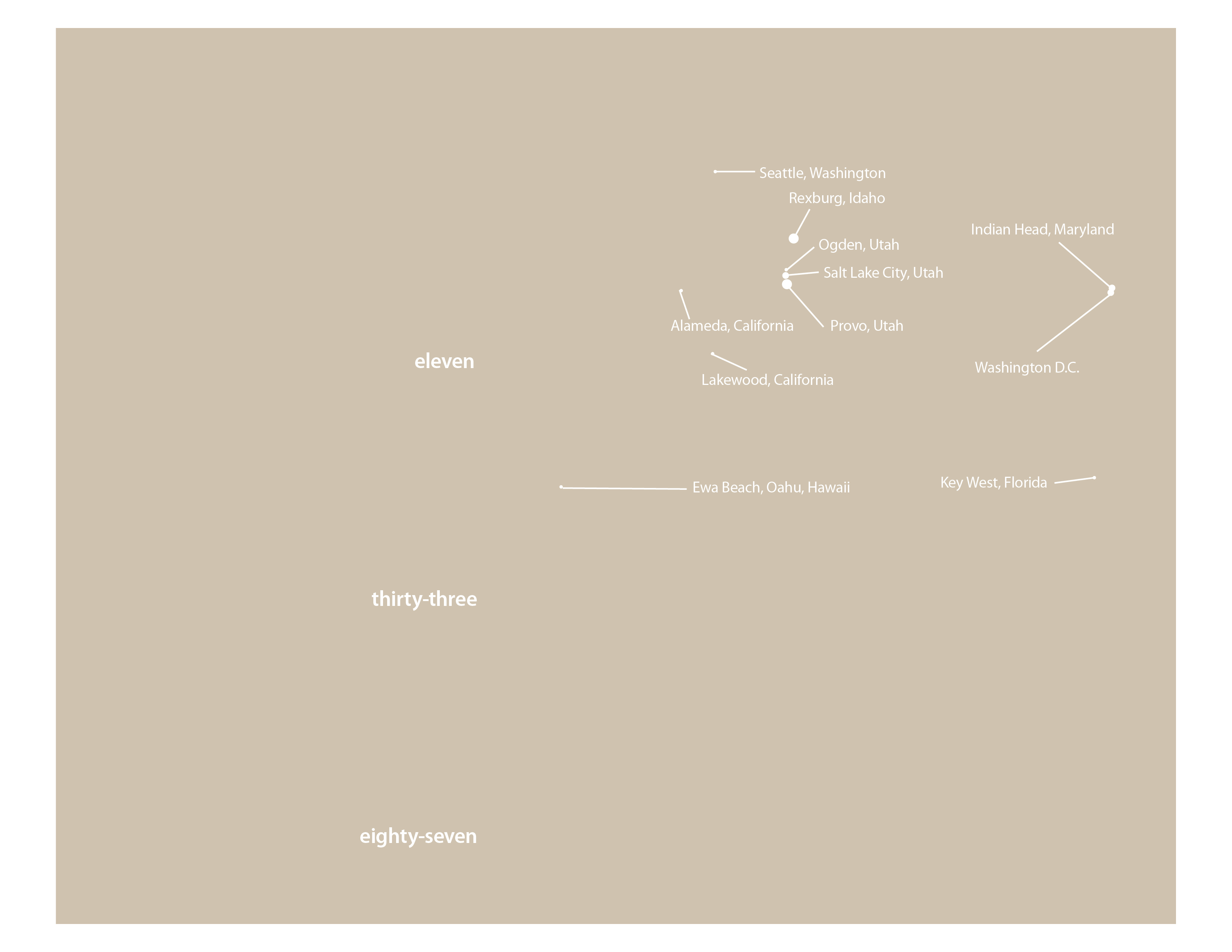
Iris – layer 5 – white text & lines (shown with layer 1)

The fifth layer is for all the white text and lines. I added white dots of various sizes for each city. Bigger dots for the cities with the most address. You see it here with the background layer so you can tell what is there.

I added a sixth layer to block out some of the more specific information on my mom for posting on this blog. No reason to risk identity theft. By putting it on a separate layer I can turn the blocked out areas on or off as needed for output.

I have learned over the last few years that it is very helpful to think through a project and create layers for different elements. It prevents lots of problems when it comes to editing and rearranging your design. For example with the residence chart, I can lock all the layers but the two involved in the chart and re-size or move it with accidentally selecting the text or other lines nearby.

If you would like an InDesign template of this project send me an email to raelyn@tellingfamilytales.com

How To: Martin’s Cove Journal

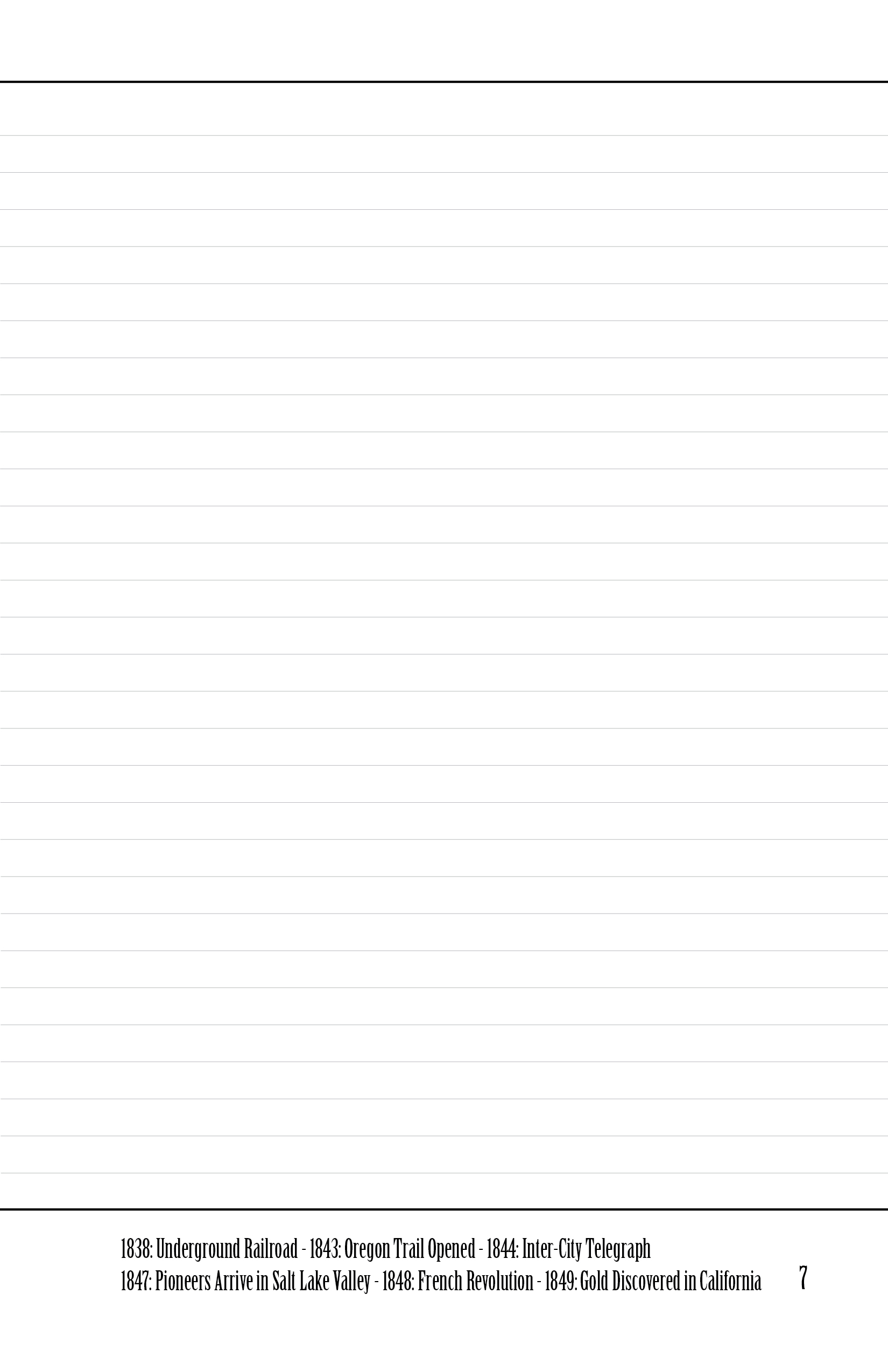
After getting an idea of what I wanted to do with the Martin’s Cove Journal, I was ready to get started. One of the things that I have found that it works best when using InDesign on a project like this is to start with a master page. Since this is a simple book I only did one master page (2 page spread) but on more complex projects there will be more master pages. Since I knew that I wanted a side bar on the left for a time line I first put a guide at 2 inches. Next I put a second guide at 2.25 inches to help me with spacing for the second text box on this page. On the right hand page of the master I made a series of lines as journaling guides. These line are just .25 points think and to make them even more subtle the stroke is a tint of 30% black.

left-hand page - Martin's Cove Journal

From here I applied the master page to most of the pages of the journal. Next I decided to pick the fonts for the project. I wanted a font that would help to create the mood of old pioneer and 1856 so I did a google search and found Fontscape’s typeface directory. They have fonts by period, so I looked at Victorian (1850 to 1890) but they didn’t seem right. Then I looked at Wild West (1850-1900). I decided on Birch which I liked plus I had on my computer too. I used Birch to do the time line but felt that the text of excerpt from Mary Taylor’s history would be better in something more like handwriting. We don’t have any journals from Mary Taylor but I wanted these entries to give that more intimate impression. After searching though my script fonts I settled on Rage Italic.

right-hand page - Martin's Cove Journal

When I got text placed into the time line and the excerpt I thought that the left page needed something to separate these two text boxes. So I went back to the master pages and added a line and adjusted the guides to accommodate the change. At this point I also added lines across the top of both pages and one across the bottom of the right hand page. While I was on the master pages I put in page numbers. At this point the journal is really started to take shape but it seems too sterile.

black swirl

splotch

I wanted it to have more of an old-fashioned feel so I went to the internet to find some clip art to enhance the pages. First I found a swirl at clker.com then a splotch at openclipart.com. I created another layer on the master page for these images. It took awhile playing around with placement and transparency to get the look I wanted. For the cover I placed the only photo I have of Mary Taylor and adjusted the swirls and the splotches to make the cover work.
The Handcart Song - Martin's Cove Journal

Another thing I wanted was a spot to put some information about what was happening in the rest of the world. So I adjusted the right hand page and added a text box on the bottom of the right page with room for a couple of events with dates. After I let the project sit for a day or two I decided to add the lyrics to “The Handcart Song” on the back. This was a favorite song of my great-great grandmother. Besides singing it as she traveled to Utah in 1856, she sang it her whole life.

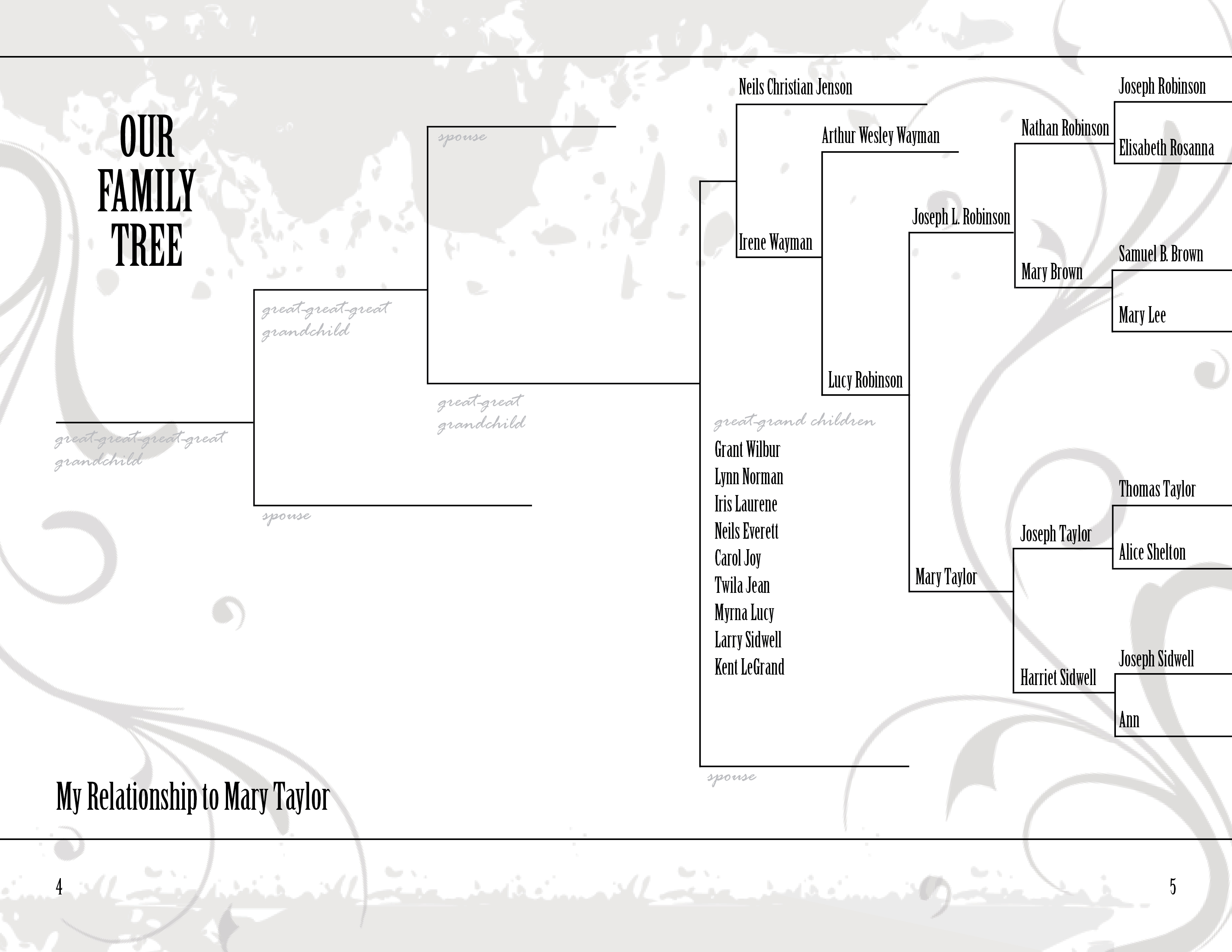
pedigree chart - Martin's Cove Journal

The last thing I wanted in the journal was a pedigree chart. I made one using the pen tool to make straight lines. There is probably an easier way but I made a vertical line and a horizontal line and made copies of them to build the chart. After I got everything arranged I zoomed in to make sure the intersections of the lines was precise. Then I made text boxes for all the names. Note that I put these on another layer so that I wouldn’t accidentally mess up the pedigree chart while playing with the names. I also used Rage Italic to put relationship labels on the pedigree chart. I used the 30% black tint to make sure these didn’t compete with the names.

I showed my mom a proof copy yesterday and she is very excited. She said it would be worth going to Martin’s Cove just to get the journal. She is 89 years old so going to Martin’s Cove isn’t easy. My parents have decided to stay in a hotel. They don’t feel up to camping.

I haven’t figured out how to put the template here to download so if you would like an InDesign template for this project send an email to raelyn@tellingfamilytales.com. Did you find this post helpful? I’ve never tried to explain how I put together a book before and I’m not sure if what I wrote is the kind of information that is meaningful, so I’d love some feedback.