Historypin

While I was checking out Homestory’s blog I came across her post on Historypin. This is such an awesome concept I can’t wait to explore it more. The idea is to tag photos by place and date. This way you can narrow down your searches for images so easily by the site and the time frame. I’ve done images searches for history books and this would have been so helpful. If you haven’t been to Historypin, you’ve got to check it out.

p.s. I enjoyed the rest of Homestory’s blog to. I really like the idea of using a building as the theme behind telling family stories. I’ll have to post more on this another day.

Time-lapse Project

Last week I came across this cool time-lapse project via Design Mom and Things Change by Frans Hofmeester. He films his daughter every week and now he has a video that shows her from birth to 12 years old in less that 3 minutes. I want to do this with our next puppy. When I told Bill about it, he suggested that it would be good to practice with Yakira first to get some of the kinks figured out before trying it with an 8 week old puppy. So I picked a spot yesterday to try this out but my camera battery was dead. Today Yakira is off to work with Bill, so I have no puppy to test it on. I’ll put it on my list for tomorrow.

This idea seems like such a fun way to document and tell the story of growing up. I have to give it a try to see what happens. Besides with a puppy it doesn’t take 12 plus years to grow up, a year does wonders. Have you ever done a time-lapse project before? I wonder if it would be possible to do something with still photos that have already been taken to show the process of growing up effectively. Who or what would you like to capture with a time-lapse video?

Infographics

From Felton Annual Report 2010

I came across a different way to tell someone’s life story recently and I had to share it here. From what I can gather Nicholas Felton puts together what he calls an “annual report” each year. For 2010 he put together the life of his father all presented in charts and graphs. It is a whole new way to look at life and the stories behind it. I want to use this concept in a project in the near future. I’m not sure which one yet but I’ll keep you posted. Maybe it will be a quick project for Mother’s Day.

Can you visualize a project that you could use this concept with? I’d love to hear about it.

Blurb – my favorite for self publishing

I’m a huge fan of Blurb.com! I have published more than a dozen books with them and I will continue to use them in the future. Blurb has 7 different sizes of books. My favorite is the 7×7. It makes such a nice compact book for those not huge projects. I also prefer the ImageWrap for the binding. It gives you a very durable cover plus the ability to have any kind of image or design on the cover you would like. If you haven’t used them before I highly recommend them. I’m grateful to a neighbor who told me about them a few years ago.

Remember Me

Last week I happened across “Remember Me” by Lesley Graham on Blurb. She uses a very collage style to illustrate the book that is very effective in telling this story. The book is about her grandfather who is losing his memory and his journey. I’m inspired by her work and will keep it in mind for future projects. Blurb has a cool preview feature that lets you see the entire book or just a few pages depending on how you set it up.

You can save 20% on two books with the promo code MOMRULES until May 2, 2012*.

*Offer valid through May 2, 2012 (11:59 p.m. local time). A 20% discount is applied toward your product total with a minimum order of 2 units or more. Maximum discount is USD $150, GBP £75, EUR €100, CAD $150, or AUD $150 off product total. Valid for printed books only. This offer is good for one-time use, and cannot be combined with volume discounts, other promotional codes, gift cards, or used for adjustments on previous orders.

How To: Martin’s Cove Journal

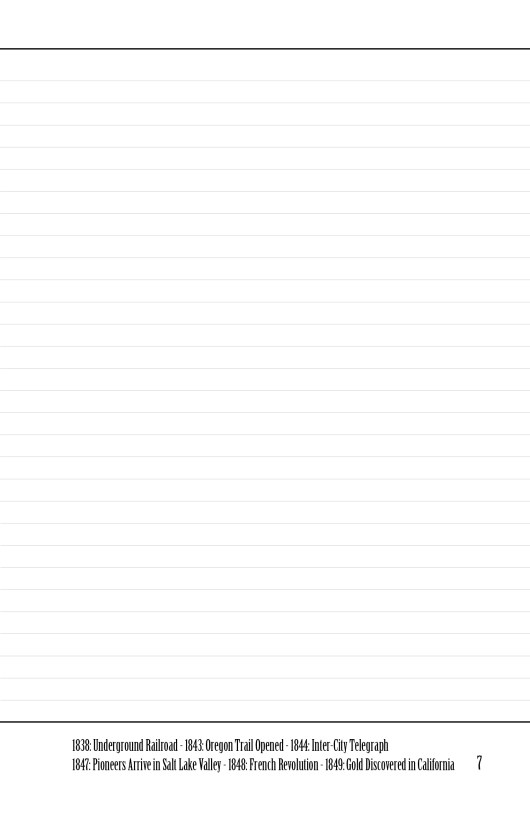
After getting an idea of what I wanted to do with the Martin’s Cove Journal, I was ready to get started. One of the things that I have found that it works best when using InDesign on a project like this is to start with a master page. Since this is a simple book I only did one master page (2 page spread) but on more complex projects there will be more master pages. Since I knew that I wanted a side bar on the left for a time line I first put a guide at 2 inches. Next I put a second guide at 2.25 inches to help me with spacing for the second text box on this page. On the right hand page of the master I made a series of lines as journaling guides. These line are just .25 points think and to make them even more subtle the stroke is a tint of 30% black.
left-hand page - Martin's Cove Journal

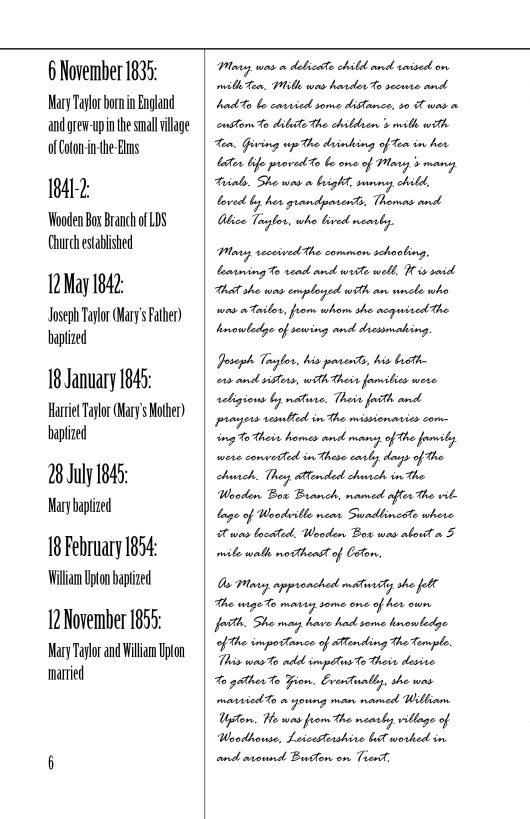
From here I applied the master page to most of the pages of the journal. Next I decided to pick the fonts for the project. I wanted a font that would help to create the mood of old pioneer and 1856 so I did a google search and found Fontscape’s typeface directory. They have fonts by period, so I looked at Victorian (1850 to 1890) but they didn’t seem right. Then I looked at Wild West (1850-1900). I decided on Birch which I liked plus I had on my computer too. I used Birch to do the time line but felt that the text of excerpt from Mary Taylor’s history would be better in something more like handwriting. We don’t have any journals from Mary Taylor but I wanted these entries to give that more intimate impression. After searching though my script fonts I settled on Rage Italic.
right-hand page - Martin's Cove Journal

When I got text placed into the time line and the excerpt I thought that the left page needed something to separate these two text boxes. So I went back to the master pages and added a line and adjusted the guides to accommodate the change. At this point I also added lines across the top of both pages and one across the bottom of the right hand page. While I was on the master pages I put in page numbers. At this point the journal is really started to take shape but it seems too sterile.

black swirl

splotch

I wanted it to have more of an old-fashioned feel so I went to the internet to find some clip art to enhance the pages. First I found a swirl at clker.com then a splotch at openclipart.com. I created another layer on the master page for these images. It took awhile playing around with placement and transparency to get the look I wanted. For the cover I placed the only photo I have of Mary Taylor and adjusted the swirls and the splotches to make the cover work.
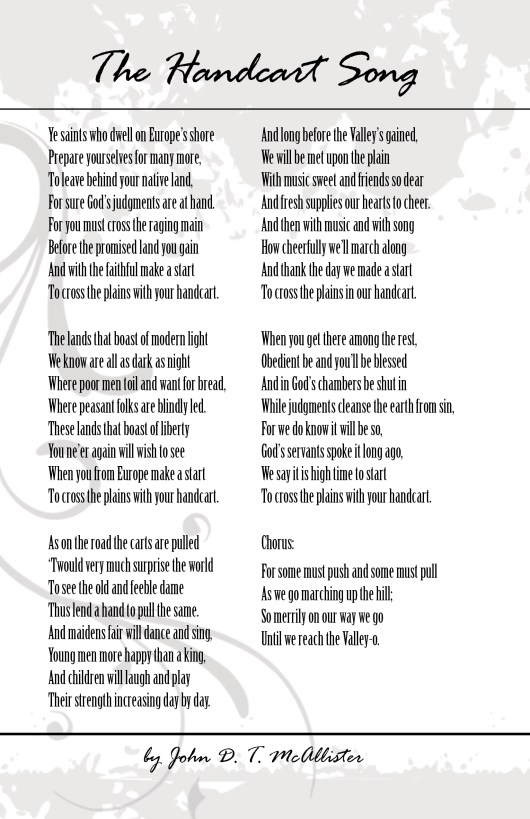
The Handcart Song - Martin's Cove Journal

Another thing I wanted was a spot to put some information about what was happening in the rest of the world. So I adjusted the right hand page and added a text box on the bottom of the right page with room for a couple of events with dates. After I let the project sit for a day or two I decided to add the lyrics to “The Handcart Song” on the back. This was a favorite song of my great-great grandmother. Besides singing it as she traveled to Utah in 1856, she sang it her whole life.
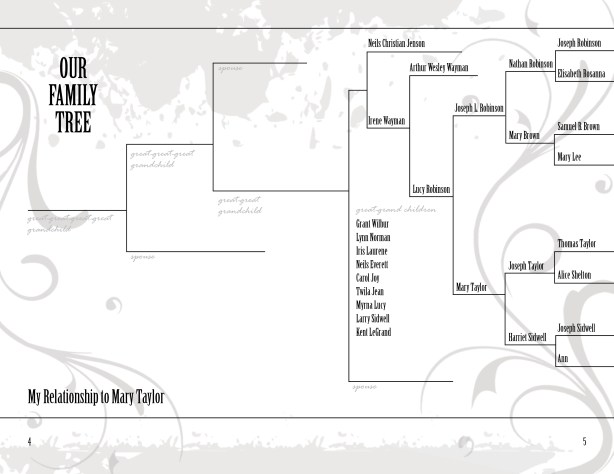
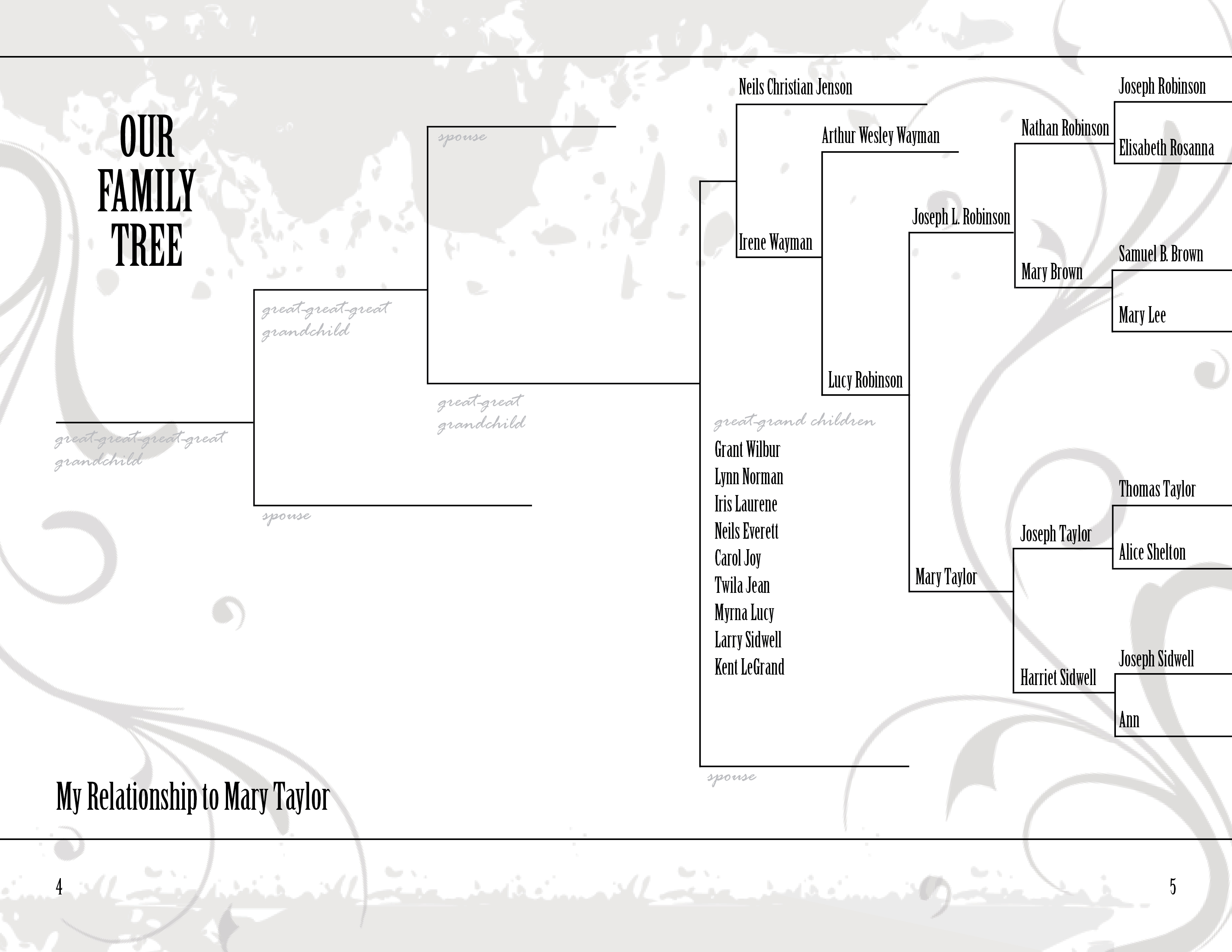
pedigree chart - Martin's Cove Journal

The last thing I wanted in the journal was a pedigree chart. I made one using the pen tool to make straight lines. There is probably an easier way but I made a vertical line and a horizontal line and made copies of them to build the chart. After I got everything arranged I zoomed in to make sure the intersections of the lines was precise. Then I made text boxes for all the names. Note that I put these on another layer so that I wouldn’t accidentally mess up the pedigree chart while playing with the names. I also used Rage Italic to put relationship labels on the pedigree chart. I used the 30% black tint to make sure these didn’t compete with the names.

I showed my mom a proof copy yesterday and she is very excited. She said it would be worth going to Martin’s Cove just to get the journal. She is 89 years old so going to Martin’s Cove isn’t easy. My parents have decided to stay in a hotel. They don’t feel up to camping.

I haven’t figured out how to put the template here to download so if you would like an InDesign template for this project send an email to raelyn@tellingfamilytales.com. Did you find this post helpful? I’ve never tried to explain how I put together a book before and I’m not sure if what I wrote is the kind of information that is meaningful, so I’d love some feedback.

Do Your Own Generations Project

Last week I talked about the BYUtv series called The Generations Project. Now I want to go into a little more depth in how to “Do your own Generations Project”. If you haven’t seen this episode yet, take time to watch it. It is worth your time.

Step One – Finding Your Why:

Think about what your biggest challenge is and what you would like to change in your life. Be willing to let this be a process. Your “why” might change as you journey through your generations project. Here are the questions that The Generations Projects asks those who want to appear on The Generations Project

  • What do you spend a lot of time thinking about?
  • What do you hope will happen to you in the next year or two?
  • Tell us a story about a life changing experience.
  • What is the biggest challenge you’re facing in your life now?

Step Two – Populate Your Tree:

Start close to home by checking with family members first to find information for your pedigree chart. The go to vital records to fill in the holes. This is the part where genealogist are experts. Think of it as a treasure hunt to find your ancestors.

Step Three – Mix It With History:

In this step you find the stories about your family member and then find out about the social history of the time. By doing this you really flesh out who that person was, they become real. One of the fun ways to mix it with history is to find a reenactment place. One that we went to several years ago was Plimoth Plantation. It is a working pilgrim village. For my generations project we are going to Martin’s Cove in Wyoming and doing a short handcart experience.

Step Four – Walk In Their Shoes:

Now you find a way to connect with your ancestor by doing something they did. It could be as extravagant as going to another country where they lived or as simple as eating the kinds of food that they ate. This step is about connecting with your family member.

Step Five – Share It & Watch It Ripple:

Last of all you want to share your experience with others. This often starts with writing down what happened to you on your generations project. Then it could be just sitting down and telling your family about what you learned and how you felt. It could be making a book, or painting a picture or writing a song. This is a very personal step and there is no wrong way to share your experience. After you share, you get to see how sharing your experience changes other people’s lives too.

My main purpose in doing this blog is to gather ways to share things like generations projects. I’m just getting started on this new focus for my blog so I’m still working through how to make this happen. If you have ways that you have shared a generations project I’d love to hear about it.

The Generations Project

Earlier this year I discovered “The Generations Project” on BYUtv. We don’t watch broadcast TV but I found it one day when I went the BYUtv website. They have all three seasons episodes available and I’ve now seen all of them. I love the concept of exploring your family history with a purpose in mind and the impact that makes on people’s lives. They even have an episode called “Do Your Own Generations Project” that helps in figuring out how to take the principles they use on the show and apply it to your own genealogy. I’ve decided to do my own generations project this summer and I’ll post about it along the way. Actually I think I’ll start tomorrow with a journal I’m working on as part of this generations project.

In each show they start with helping the person to find out why they want to learn about their ancestors, then they fill out their family tree, learn about the history of that time period and finally walk in that ancestors shoes. The last step is to share what you have learned with others and watch how it affects their lives. Most of the shows are about 30 minutes long so if you haven’t seen it, hop on over to BYUtv.

I’m sold on the concepts they teach in the show and dedicated to helping other share what they know about their families. What do you think about “The Generations Project”?

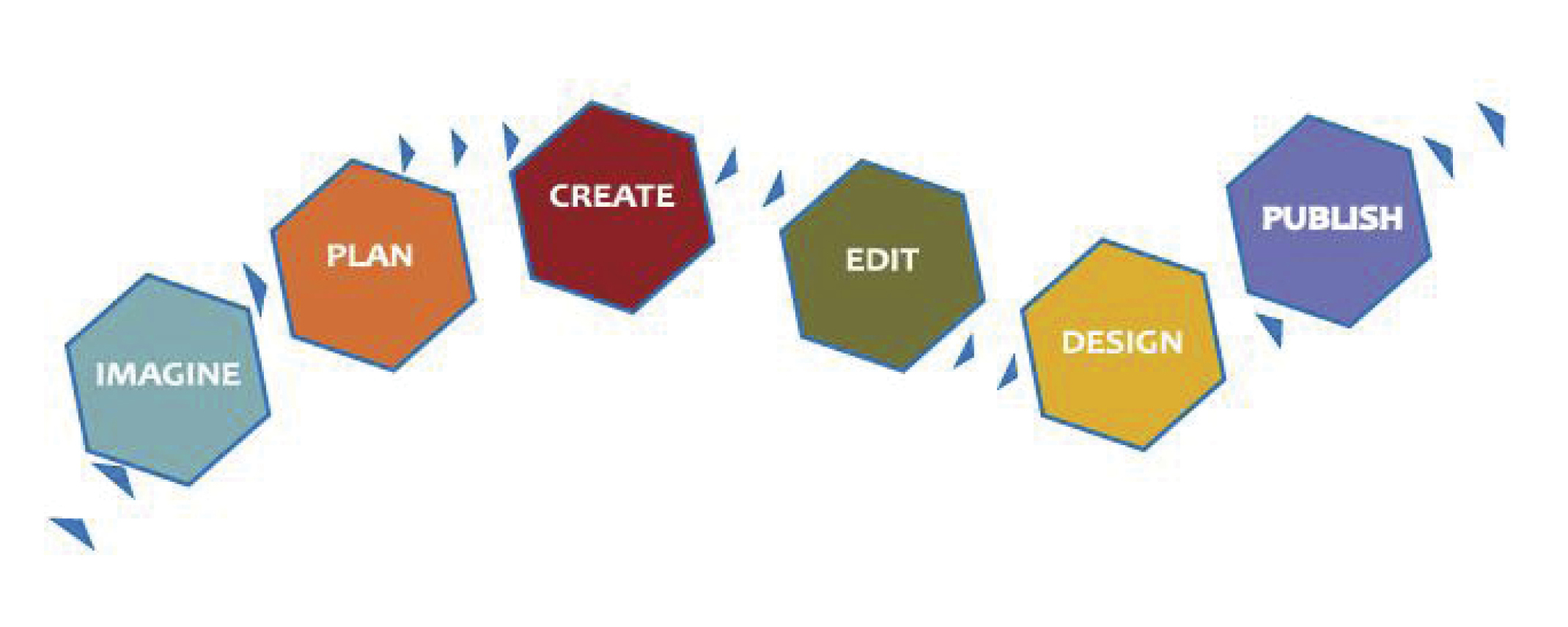
How to: Workflow for Publishing with Adobe Creative Suite

I attended RootsTech this past February at the Salt Palace in Salt Lake City. There were lots of wonderful classes but I think my favorite was by Nancy Barnes “Use Adobe Creative Suite to Self Publish Your Family History Book”. I use InDesign, a page layout program that is part of Adobe Creative Suite all the time, so I wasn’t sure if I would learn anything in this class. But Nancy had lots of good information about developing an efficient workflow when putting together a book for publishing. I’ve learned some of her suggestions already and recognize the value of others from my own struggles. Nancy’s book “Stories To Tell: An easy guide to self publishing family history books & memoirs”, looks like it goes it to lots of details on how to get the book written and I’ll have to take time to read it. Here are some of the high lights of what I learned from her class.

  • Clean-up the manuscript (in MS Word or other word processor)
  • Mark places for images (with special characters such as ########)
  • Choose and scan images
  • Prepare images (in Adobe Photoshop)
  • Set up book in InDesign (get exact specs from your printer)
  • Layout master pages
  • Import text from word processor
  • Create and apply consistent styles
  • Place images (using Adobe Bridge)
  • Cover design (she uses Adobe Illustrator, I’ve always used InDesign)
  • Final proof before sending to printer

Nancy taught us some tricks on how to use Adobe Bridge and meta files to put in captions. I haven’t tried this yet but it sounds slick. I’ll tell you about it and other more detail instructions on the step in other posts. Check out Nancy’s website www.StoriesToTellBooks.com. They offer lots of services from editing to book printing along with great information on putting together a family history.

Do you have a workflow plan that works for you? What software have you used?